Auth
The CipherMail Gateway back end exposes a REST API that is used by both the web-based user interface and the command-line (CLI) tool to configure and manage the system. To call the REST API, you must sign in with an admin account. Admin accounts and their credentials are created and maintained with the CLI tool.
Access to the REST API is controlled by roles and permissions:
A permission grants access to a specific capability or set of endpoints in the API.
Permissions are grouped into roles.
Roles are assigned to admin accounts.
An admin can only use an API endpoint if their assigned roles include the required permission. This design ensures least-privilege access: administrators only see and do what their roles allow.
Permissions
Access to each capability or property requires a specific permission.
The gateway uses a comprehensive permission model with approximately 1700 distinct permissions. For every property, there are separate permissions to get and to set values at three scopes: global, domain, and user.
To list all available permissions, use the following cli command:
ciphermail-cli auth permissions all
To get a list of all permissions assigned to an admin, use the following cli command:
ciphermail-cli auth permissions effective --name <admin>
Roles
Permissions are granted to roles rather than directly to users. Roles can inherit other roles, allowing you to build reusable role sets. The system includes a default role named admin; it is created or updated each time the back end starts and is automatically granted all available permissions.
Note
In a standard installation, there is typically another role called portal. This role is assigned to the portal administrator and is used by the portal back end.
Use the following CLI commands to manage roles (see CLI Commands for all role related commands)
Create a role
NAME
       auth role create - Create new role

SYNOPSIS
       auth role create --name <string>

OPTIONS
       --name <string>
       name of new role
       [Mandatory]
Add permissions
NAME
       auth role permissions add - Add permissions to a role

SYNOPSIS
       auth role permissions add --name <string> --permissions <string-list>

OPTIONS
       --name <string>
       name of role
       [Mandatory]

       --permissions <string-list>
       permissions to add
       [Mandatory]
Delete a role
NAME
       auth role delete - Delete role

SYNOPSIS
       auth role delete --name <string>

OPTIONS
       --name <string>
       name of role to delete
       [Mandatory]
Inherit roles
NAME
       auth role inherited set - Set inherited roles for a role

SYNOPSIS
       auth role inherited set --name <string> --inherited-roles <string-list>

OPTIONS
       --name <string>
       name of role
       [Mandatory]

       --inherited-roles <string-list>
       inherited roles
       [Mandatory]
Admins
To use the REST API or the web interface, you must sign in with a valid
administrator account. For added security, administrator access can be
restricted to specific IP addresses or ranges. The restriction is checked when
the admin signs in and again on every request of the session: a session ends
as soon as a request comes from an address which is not authorized, so a
session cookie is of no use from another address, and a change of the
addresses applies to the sessions which are already open. An admin whose
traffic can leave through several addresses must therefore authorize all of
them, or the range. An entry is an IPv4 or IPv6 address (10.1.2.5,
2001:db8::5) or a range in CIDR notation (10.0.0.0/8). A range written
with the bits of a host set, such as 10.1.2.5/24, is the whole range,
10.1.2.0/24. The wildcard and dash notations 10.1.2.* and
10.1.2.0-255 are accepted as well, and the entry * authorizes every
address. An admin cannot restrict their own account to addresses which do not
include the address they are connected from, which would end their session:
set the addresses from an address in the list, or have another admin set them.
Hint
In a standard installation, two administrator accounts are created: cli and
portal. These accounts can be accessed only from the local host (127.0.0.1).
The cli account has the admin role and therefore full permissions. The
portal account has a restricted portal role that grants only the minimum
permissions required by the portal backend.
To add a new admin using password authentication with full permissions, execute the following cli commands:
To create a new administrator account with full privileges using password-based authentication, run the following CLI commands:
ciphermail-cli auth admin add --name <admin> --authentication-type username-password
ciphermail-cli auth admin password --name <admin> --password <password>
ciphermail-cli auth admin roles set --name <admin> --roles admin
Use the following CLI commands to manage admin credentials (see CLI Commands for all admin related commands)
Password policy
A new admin password must satisfy a policy, whether it is set by another
admin, from the CLI or by the admin changing their own password. There are two
policies: one for a password a person chooses, and one for a password set with
the system encoding (--password-encoding system of the CLI), which the
Ansible roles use for the generated passwords of the machine accounts of the
portal and Company Portal back-ends. The CLI’s own account is created by
cm-admin-db-tool and passes no policy. A company rule which demands
characters a generator does not produce, such as a special character,
therefore belongs in the first policy only; the second must stay satisfiable
by 32 random letters and digits. An admin who changes their own password
always gets the first policy and the default encoding: the system encoding can
only be chosen by an admin who sets the password of an account. Both policies
use the syntax of the portal password policy, see password policy syntax. A chosen password is also checked against the fixed
rules of the portal: no run of five or more repeated characters, no keyboard,
alphabetical or numerical sequence of five or more characters, and not the
account name, when it has at least four characters. A system password is not:
those rules catch human habits, and a generated password which happens to
contain such a run is a fine secret.
Default: at least 12 characters for an admin password, at least 32 for a system password, the length the Ansible roles generate. A system password is stored with a cheap hash, chosen so that the machine accounts can present it with every request, so its strength has to come from its length: 32 random characters are out of reach of a brute force attack, and so is a typed password of that length.
The policy applies when a password is set, not to existing passwords, and not
to the recovery tool cm-admin-db-tool. The policies can be modified by
using an Ansible override file 
# at least 10 characters and a special character for an admin password
ciphermail_backend__admin_password_policy: "{m:2, r:[{p:'^.{10,}$'}, {p:'[^A-Za-z0-9]'}]}"
# at least 32 characters for a system password
ciphermail_backend__system_password_policy: "{m:1, r:[{p:'^.{32,}$'}]}"
Without Ansible, set the properties
ciphermail.rest.authentication.admin-password-policy and
ciphermail.rest.authentication.system-password-policy in a YAML file in a
subdirectory of /etc/ciphermail/spring.config.d, for example
/etc/ciphermail/spring.config.d/custom/application.yml, followed by a
restart of the back-end:
ciphermail.rest.authentication.admin-password-policy: "{m:2, r:[{p:'^.{10,}$'}, {p:'[^A-Za-z0-9]'}]}"
Add admin
NAME
       auth admin add - Add new admin

SYNOPSIS
       auth admin add --name <string> --authentication-type <username-password | oidc>

OPTIONS
       --name <string>
       name of new admin
       [Mandatory]

       --authentication-type <username-password | oidc>
       [Mandatory]
Hint
In most setups, set --authentication-type to username-password. Use oidc
only if OpenID Connect is configured in your environment (for example,
with Entra ID).
Delete admin
NAME
       auth admin delete - Delete admin

SYNOPSIS
       auth admin delete --name <string>

OPTIONS
       --name <string>
       name of the admin to delete
       [Mandatory]
Set password
NAME
       auth admin password - Set admin password

SYNOPSIS
       auth admin password --name <string> --password <string>

OPTIONS
       --name <string>
       name of admin
       [Mandatory]

       --password <string>
       password for the admin
       [Mandatory]
Set Roles
NAME
       auth admin roles set - Set roles for an admin

SYNOPSIS
       auth admin roles set --name <string> --roles <string-list>

OPTIONS
       --name <string>
       name of admin
       [Mandatory]

       --roles <string-list>
       roles for the admin
       [Mandatory]
Get all admins
NAME
       auth admin get all - List all admins

SYNOPSIS
       auth admin get all
EntraID
This section guides you through setting up authentication with Microsoft Entra ID (formerly Azure Active Directory).
Before you start, make sure you have administrator access to your Entra ID tenant and know which users or groups should be allowed to sign in.
At a high level, you will register or use an existing application in Entra ID, configure redirect and logout URLs, generate client credentials, assign the appropriate permissions, and then copy the tenant ID, client ID, and client secret into the product’s authentication settings.
To set up Microsoft Entra ID authentication, complete the steps below.
Create an App Registration on the Entry ID page
Create a client secret
Create an Ansible override file
Run the playbook
For every admin, add an admin with authentication type set to oidc, named by the object ID of its Entra ID account
Optionally, limit who can sign in
Create App Registration
Sign in to the Microsoft Azure portal and open the Microsoft Entra ID service. Find your Tenant ID and make a note of it, as you will need it in the next steps.
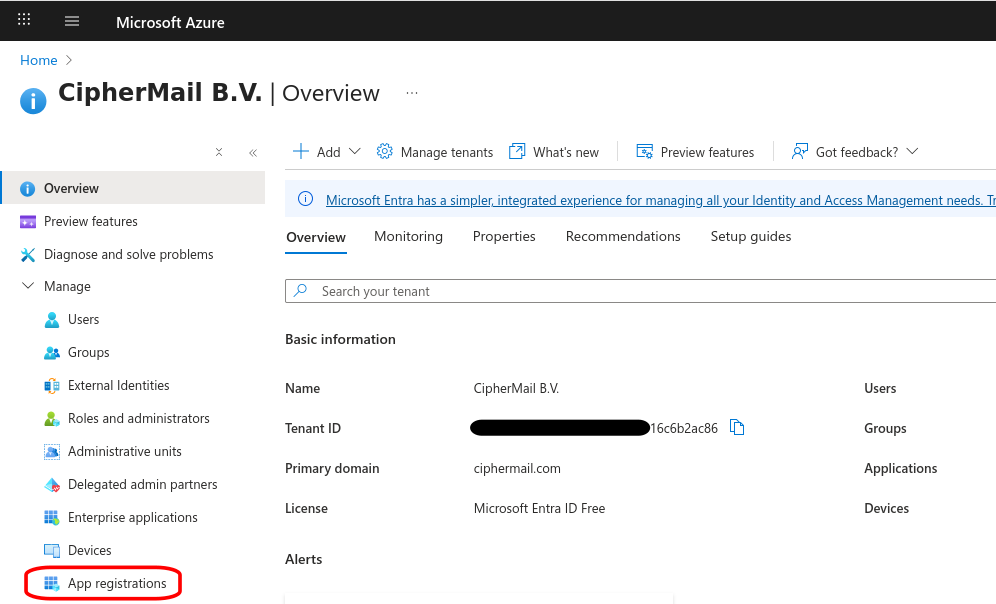
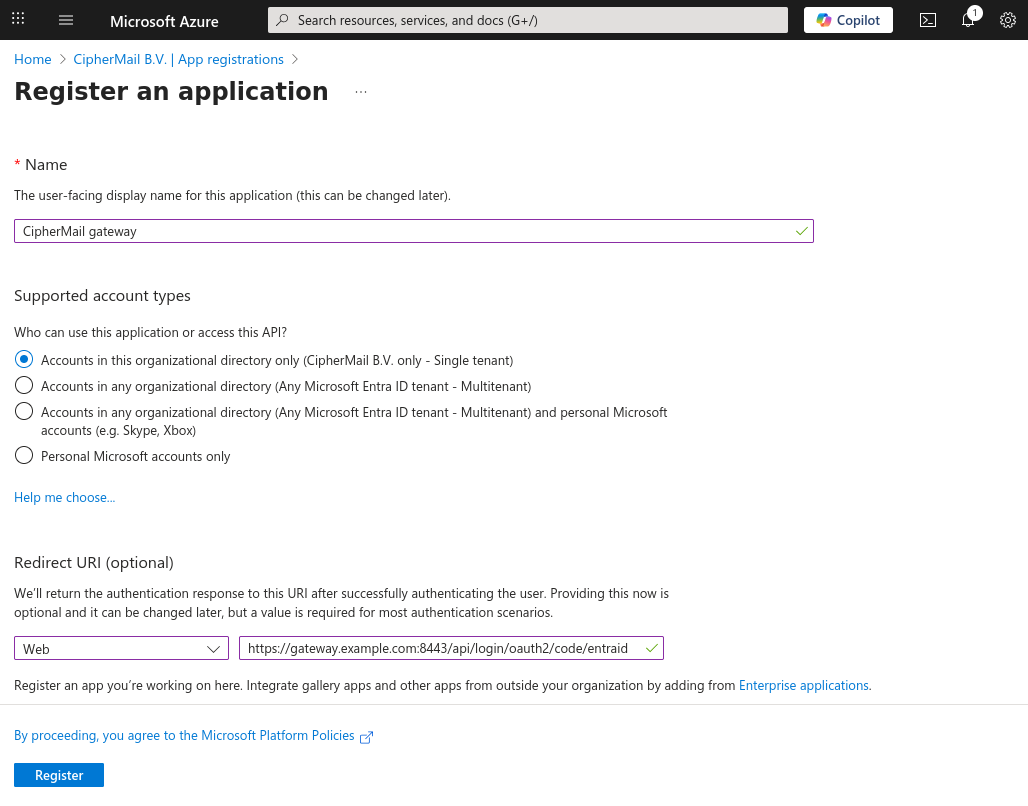
Open the “App registrations” page and click New registration
Set a “user-facing display name”
Select “Accounts in this organizational directory only”
Under “Redirect URI” Select “Web” and set the URL to https://<hostname>:8443/api/login/oauth2/code/entraid where
<hostname>should be replaced by the fgqdn of the CipherMail gatewayClick Register to add the new app registration
Hint
If you operate multiple CipherMail Gateways (for example, in a high-availability cluster), configure a separate “Redirect URI” for each gateway instance.
Create a Client Secret
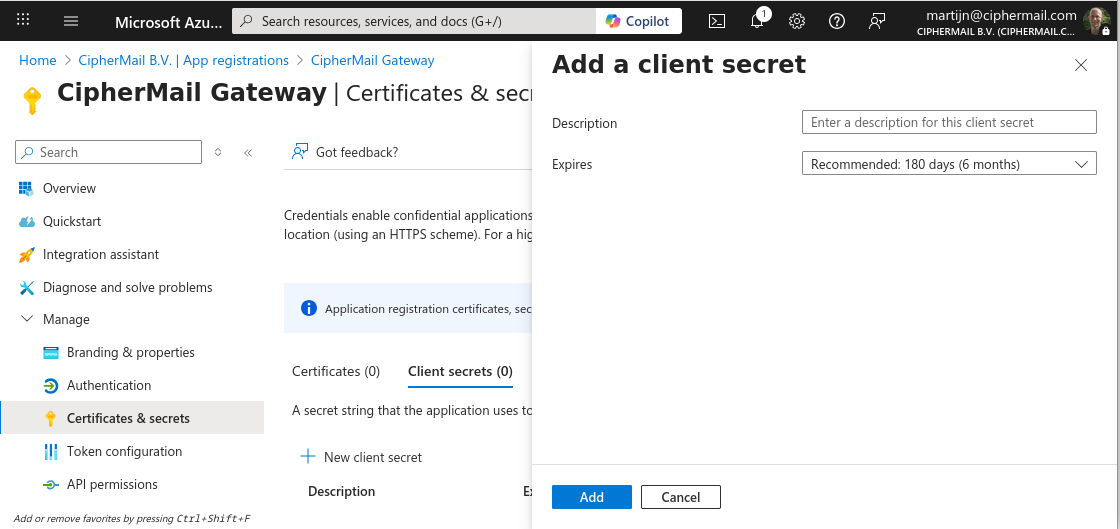
On the App Registration page, click Certificates & Secrets, then Client secrets and click New client secret.
Enter a descriptive name, choose an expiration date, and select Add. The “Certificates & secrets” page will then display the newly created secret.
Attention
The secret value is displayed only once. Copy it now, as you will need it in the next steps.
Create Ansible override file
To enable EntraID, you need to create an ansible override file:
Create the file using the Cockpit File Browser (or use an SSH client)
sudo vi /etc/ciphermail/ansible/group_vars/all/entraid.ymlPaste the following configration.
---
ciphermail_entraid__enabled: true

# must be set to your Azure Tenant ID
ciphermail_entraid__azure_tenant_id: '<tennant-id>'

# must be set to the client id
ciphermail_entraid__client_id: '<client-id>'

# must be set to the client secret
ciphermail_entraid__client_secret: '<client-secret>'

# find the admin by the object ID of its Entra ID account
ciphermail_entraid__user_name_attribute: 'oid'
Replace
<tennant-id>with your tenant ID,<client-id>with the client ID (which can be found on the “App registration overview page”) and<client-secret>with the client secret value (from the previous step)Login the shell using Cockpit Terminal (or use an SSH client)
Run the ansible playbook
sudo cm-run-playbookHint
the
sudocommand might ask for your Unix account password.
Add OIDC admin
With the CipherMail gateway, OIDC is only used for authenticating the admin, not for authorization. The main reason for this is that the gateway permission model is not compatible with the OIDC permission model. To allow OIDC login, an admin account with authentication type set to oidc should be added.
With the override file above, the admin is found by the object ID of its Entra ID account. The object ID never changes, and it cannot be given to another account, so no email address is trusted and the email domain claims are not needed. The object ID is shown on the “Overview” page of the user in Entra ID.
ciphermail-cli auth admin add --name <object-id> --authentication-type oidc
ciphermail-cli auth admin roles set --name <object-id> --roles admin
Replace <object-id> with the object ID of the Entra ID account. The admin
list and the audit log show the object ID as the name of the admin.
Find admins by email address
Admins can be found by the email address in the ID token instead, so that the
admin list and the audit log show the email address. This is the default when
ciphermail_entraid__user_name_attribute is not set, and how gateways which
were set up before version 6.5.0 work. Leave the variable out of the override
file and add the admins with their email address. Then add the email domain
claims and switch the check on (see Add the email domain claim), or
limit who can sign in (see Limit who can sign in). The check is off
by default, and without it or the limit, whoever can set the email address of
an Entra ID account, a guest included, can log in as an admin.
ciphermail-cli auth admin add --name <email> --authentication-type oidc
ciphermail-cli auth admin roles set --name <email> --roles admin
An Entra ID admin who may set the email address of accounts can then give an account the address of a gateway admin, and log in as that admin.
To switch a gateway to object IDs, add every OIDC admin again with the object
ID as name, and set its roles. Then set
ciphermail_entraid__user_name_attribute to oid in the override file,
run the playbook, and delete the admins with the email address:
ciphermail-cli auth admin delete --name <email>
Add the email domain claim
This is only needed when admins are found by their email address (see
Find admins by email address), and always for the Company Portal. The gateway then
signs in the admin whose name is the email address in the ID token of Entra ID.
Entra ID does not verify that address: a guest account, for
example, can carry an address which is not its own. With the check switched on,
the gateway only accepts the login when the ID token has the email address and
says that the domain of the address is verified by the tenant of the account.
Entra ID says so with the optional claim xms_edov. Both email and
xms_edov must be added to the ID token. Adding the claims alone changes
nothing: Entra ID still signs in an account whose address is not verified, and
only the check refuses it.
On the App Registration page, click Token configuration, then
Add optional claim. Select the token type “ID”, select email
and xms_edov and click Add.
If xms_edov is not in the list, open the Manifest of the App
Registration instead, and add both to the idToken list of
optionalClaims:
"optionalClaims": {
    "idToken": [
        {
            "name": "email",
            "source": null,
            "essential": false,
            "additionalProperties": []
        },
        {
            "name": "xms_edov",
            "source": null,
            "essential": false,
            "additionalProperties": []
        }
    ]
}
Then switch the check on for the admin: set
ciphermail_entraid__require_verified_email_domain to true in the
Ansible override file and run the playbook. Log in with Entra ID afterwards to
check that the claims arrive. The Company Portal checks by default.
Note
The check is about the domain of the address, not about the account. An Entra ID admin with a role which may set the email address of accounts can still give an account the address of someone else in a domain which the tenant owns, and log in as that admin. Entra ID admins with such a role are therefore trusted with the gateway as well, unless the admins are found by their object ID, see Add OIDC admin.
The check is also about whether the address is genuine, not about whether the account belongs to your organisation. A guest from another organisation, or a guest who signs in with a Microsoft account, a Google account or a one-time passcode, has a verified address of its own and passes the check. To keep such accounts out, limit who can sign in, see Limit who can sign in.
Attention
The check is off by default for the admin, so that gateways which find their admins by email address keep working after an upgrade. Without the check, whoever can set the email address of an Entra ID account, a guest included, can log in as any admin with authentication type oidc which is found by its email address.
Add the claims before switching the check on: with the check on and
without the claims, every Entra ID login of an admin which is found by its
email address is refused, and the reason is written to the audit log. Keep
an admin which logs in with a password in case of a mistake.
ciphermail-cli on the gateway shell still works, because it uses the
local cli admin.
If the claims cannot be added, require assignment in Entra ID and assign no guest accounts, see Limit who can sign in, so that only the accounts you assign can sign in. Better still, find the admins by their object ID, see Add OIDC admin: with that setup no email address is trusted and neither the claims nor the check are needed.
Limit who can sign in
By default every account of the Entra ID tenant can sign in to the App Registration, and the gateway accepts the accounts which are added as an OIDC admin. Entra ID can refuse the other accounts itself, before the gateway sees them:
Open Enterprise applications, select All applications and open the application of the App Registration, which has the same name.
Under Properties, set Assignment required? to Yes and click Save.
Under Users and groups, click Add user/group, select the accounts of the gateway admins and click Assign.
An account which is not assigned can then not sign in, and Entra ID shows the error AADSTS50105. Check this with an account which is not assigned.
Note
Assigning a group instead of separate accounts requires Microsoft Entra ID P1 or P2. With assignment required, users cannot consent to the app themselves, so an Entra ID admin must grant admin consent for the tenant. The requirement does not apply to accounts with the Global Administrator role. Whoever may change the assignments, such as the owners of the application and Cloud Application Administrators, decides who can sign in.
Login with EntraID
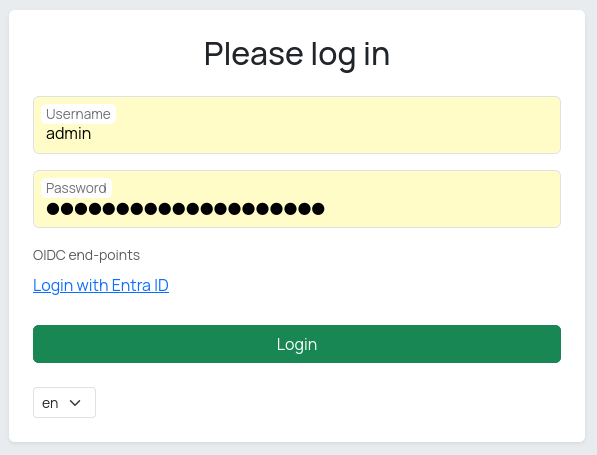
When you open the admin UI login page, you will see a Login with Entra ID option on the login page. Selecting this option starts the OpenID Connect (OIDC) sign-in process.
Hint
If sign-in fails, verify that the redirect URL exactly matches what is
configured in Entra ID, that time is synchronized on all systems, that
the user has the required role or group membership, that the
authentication-type of the admin is set to oidc, and that the name of the
admin is the object ID of the Entra ID account. When admins are found by
their email address and the check is switched on, also verify that the ID
token has the email and xms_edov claims (see
Add the email domain claim).
When Entra ID cannot be reached
During startup, the gateway contacts Entra ID to retrieve the provider’s configuration (endpoints and supported features) from a well-known JSON discovery URL.
If Entra ID cannot be reached, for example because the gateway has no internet connection, DNS does not resolve or Entra ID itself is down, the gateway still starts. It starts with Entra ID login switched off, writes an error to the log, and tries again in the background. As soon as Entra ID can be reached, Entra ID login switches itself on. The gateway does not have to be restarted for this.
Email is therefore never held up by Entra ID being unavailable.
Attention
While Entra ID login is switched off, the “Login with Entra ID” option is
not shown on the login page and an admin whose authentication type is
oidc cannot log in. Always keep at least one admin which logs in with a
password, so that the gateway can still be managed while Entra ID is
unavailable.
ciphermail-cli auth admin add --name <name> --authentication-type username-password
To switch Entra ID off altogether, set ciphermail_entraid__enabled to
false and run the playbook.
How long the gateway waits for Entra ID during startup, and how often it tries
again afterwards, is set with the settings below. Set the Ansible variable and
run the playbook. The Company Portal has a set of its own, with the
ciphermail_company_portal_backend__ prefix instead of
ciphermail_backend__.
System property |
Ansible variable |
Default |
Description |
|---|---|---|---|
|
|
60 |
How long the provider gets to answer while the gateway is starting. The gateway starts with Entra ID login switched off if the configuration has not been retrieved within this time. Do not set this below 30 seconds: retrieving the configuration probes several URLs and a single one of those is allowed 30 seconds by itself, so a lower value can call a provider unreachable which would have answered. |
|
|
60 |
How long the gateway leaves the provider alone after a failed attempt. A new attempt is made the first time Entra ID login is used, or the login page is opened, after this interval has passed. Lower it to switch Entra ID login on sooner after the provider comes back, raise it to contact a provider which is down less often. |
Warning
Do not edit /etc/ciphermail/spring.config.d/entraid/application.yml
itself. That file is generated by Ansible and any change to it is lost the
next time the playbook runs.
Other OpenID Connect providers
The gateway accepts any OpenID Connect provider which is configured as a Spring Security client registration. The identity of the admin is whatever the claim named by the user name attribute of the registration contains, so what that claim is worth depends on the provider.
An admin who is found by their email address is only as safe as the address at
the provider. A provider which lets users set their own address, for example
Keycloak with self-service profile editing or self-registration, or a brokered
or social identity, lets a user sign in as the admin whose address they set.
The gateway can therefore refuse a login which takes the admin from an email
address the provider says is not verified: the standard claim
email_verified is false, or anything else than true. This applies
when the user name attribute is email, and, with a provider other than
Entra ID, also when the claim it names holds the same address as the email
claim, as with a provider whose user name is the address; Entra ID is only
checked with the user name attribute email or the object ID, see
EntraID . A user name claim which holds another address is not
covered by anything: nothing verifies it, so use the subject instead (see
below). A provider which does not send the claim is not affected. Entra ID
does not send it; for Entra ID the email domain claim applies, see
Add the email domain claim.
The check is off by default for the admin,
ciphermail_backend__oauth2_refuse_unverified_email: false, so that
existing setups keep working: a Keycloak with users federated from LDAP or
brokered from another provider marks every address unverified unless the
“Trust Email” setting of that LDAP provider or identity provider is on, and an
account an admin created by hand is unverified unless the admin ticked it.
Switch the check on once the provider verifies the addresses of the admins,
or find the admins by the subject, which needs no check.
Prefer finding admins by the subject of the provider (sub), which is
stable and which a user cannot change, over the email address: set the user
name attribute of the registration to sub and add the admins under their
subject, as Add OIDC admin describes with the object ID for
Entra ID. The address check then does not apply.
The Company Portal applies the same check to every login, on by default
(ciphermail_company_portal_backend__oauth2_refuse_unverified_email: true),
because a Company Portal user is an email address and is created from it at
the first login. With such a provider it also requires the user to be the
email address of the claims, whatever the switch: keep the user name attribute
of its registration at email, the only claim email_verified is about.
With Entra ID that requirement is part of the email domain check, see
Add the email domain claim. With a Keycloak as described above,
switch “Trust Email” on, or switch the check off.
LDAP
This section guides you through setting up authentication with an external LDAP server. The LDAP server should support bind authentication.
Note
The LDAP server is used only for user sign-in (authentication) and does not control roles or permissions (authorization). You must still create an administrator account in the application’s back end and assign the required permissions.
To set up LDAP authentication, complete the steps below.
Create an Ansible override file with the LDAP configuration
Run the playbook
For every admin, add an admin with authentication type set to ldap
Create Ansible override file
To enable EntraID, you need to create an ansible override file.
An administrator is authenticated by performing an LDAP bind against a distinguished name (DN). You can provide the user DN in one of two ways: specify the DN directly, or search for it using a search filter. At least one of these methods is required. It is recommended to directly bind to a DN and not search for a user because searching requires an authenticated user.
The following ansible variables are supported (the default values are shown):
ciphermail_backend__ldap_authentication_uri: ''
ciphermail_backend__ldap_authentication_user_dn_pattern: ''
ciphermail_backend__ldap_authentication_search_filter: ''
ciphermail_backend__ldap_authentication_search_base: ''
ciphermail_backend__ldap_authentication_deref_link_flag: false
ciphermail_backend__ldap_authentication_search_sub_tree: false
ciphermail_backend__ldap_authentication_search_time_limit: 0
ciphermail_backend__ldap_authentication_bind_user_dn: ''
ciphermail_backend__ldap_authentication_bind_password: ''
ciphermail_backend__ldap_authentication_uri
Specify the LDAP server using a URL in this format:
ldap://localhost:389/<base-dn>. When a base DN is included, it becomes the default base (suffix) for all operations. In that case, provide only relative distinguished names (RDNs) in your operations; do not include full distinguished names (DNs).
ciphermail_backend__ldap_authentication_user_dn_pattern
The user DN template to bind to. The special parameter
{0}will be replaced by the name of the admin.
- Example::
uid={0},ou=Users,o=ciphermail,dc=example.com,dc=com
ciphermail_backend__ldap_authentication_search_filter
If you cannot bind using an explicit DN, configure a search filter to locate the administrator’s DN in the LDAP directory. The special parameter
{0}will be replaced by the name of the admin.
- Example::
uid={0}
ciphermail_backend__ldap_authentication_search_base
The base distinguished name (DN) that serves as the starting point for the search.
ciphermail_backend__ldap_authentication_deref_link_flag
Enables LDAP alias dereferencing. When this option is turned on, the directory follows alias references during searches and returns the target entries instead of the alias objects. This can improve accuracy if your directory uses aliases to point to real entries. If you want aliases to be treated as regular entries and not followed, leave this disabled. Note that dereferencing may increase search time and could reveal data from aliased branches, so enable it only if your directory design requires it.
ciphermail_backend__ldap_authentication_search_sub_tree
When enabled, the search scans all entries within and below the specified search base DN, not just the base itself. Use this option if you want results from the entire subtree starting at the base DN. Disable it if you only want to search the exact base DN level.
ciphermail_backend__ldap_authentication_search_time_limit
Sets the maximum time, in milliseconds, to wait for an LDAP search to complete. Use 0 to wait indefinitely.
ciphermail_backend__ldap_authentication_bind_user_dn
Most LDAP servers require you to sign in (bind) before they allow directory searches. Configure the setting
ciphermail_backend__ldap_authentication_bind_user_dnwith the DN of a service account that will be used to perform these authenticated searches.Use a dedicated, read-only service account rather than a personal user. Ensure this account has permission to search the relevant base DN and read the attributes your application needs. You will also need to provide the corresponding password in the matching password setting for this account.
ciphermail_backend__ldap_authentication_bind_password
The password for the user specified in the
ciphermail_backend__ldap_authentication_bind_user_dnsetting
Create an override file using the Cockpit File Browser (or use an SSH client)
sudo vi /etc/ciphermail/ansible/group_vars/all/ldap.yml
Example configuration with direct bind:
---
ciphermail_backend__ldap_authentication_uri: 'ldaps://ldap.example.com:636'
ciphermail_backend__ldap_authentication_user_dn_pattern: 'uid={0},ou=Users,o=ciphermail,dc=example,dc=com'
Example configuration with search bind:
---
ciphermail_backend__ldap_authentication_uri: 'ldaps://ldap.example.com:636'
ciphermail_backend__ldap_authentication_search_base: 'o=ciphermail,dc=example,dc=com'
ciphermail_backend__ldap_authentication_search_filter: 'uid={0}'
ciphermail_backend__ldap_authentication_search_sub_tree: true
ciphermail_backend__ldap_authentication_bind_user_dn: 'uid=admin,ou=Users,o=ciphermail,dc=example,dc=com'
ciphermail_backend__ldap_authentication_bind_password: 'password'
Example configuration for Windows AD Server:
---
ciphermail_backend__ldap_authentication_uri: 'ldaps://server.example.com:636'
ciphermail_backend__ldap_authentication_search_base: 'cn=Users,dc=example,dc=com'
ciphermail_backend__ldap_authentication_search_filter: 'samAccountName={0}'
ciphermail_backend__ldap_authentication_search_sub_tree: true
ciphermail_backend__ldap_authentication_bind_user_dn: 'cn=<put bind display name here>,cn=Users,dc=example,dc=com'
ciphermail_backend__ldap_authentication_bind_password: '<password>'
Run playbook
After creating of changing the ansible ovrride file, the playbook should be run:
sudo cm-run-playbook
Add LDAP admin
The LDAP server is used only for user sign-in (authentication) and does not control roles or permissions (authorization). You must still create an administrator account in the application’s back end and assign the required permissions.
ciphermail-cli auth admin add --name <name> --authentication-type ldap
ciphermail-cli auth admin roles set --name <name> --roles admin
Replace <name> with your LDAP account name.
Note
Only the accounts which are added as an admin with authentication type ldap are tried against the LDAP server. Each wrong password counts towards the account lockout policy of the directory, so someone who knows the name of an LDAP admin can lock that account in the directory. The gateway stops asking the LDAP server for an admin after five failed login attempts from an IP address, which slows this down but cannot prevent it.