Cluster setup
Requirements
The following requirements must be met before a CipherMail cluster can be set up:
If a local MariaDB is used, at least three nodes should be configured. If an external database is used, at least two nodes should be configured.
Every node from the cluster is configured with a fully qualified hostname, and a lookup of its own hostname returns that fully qualified hostname.
Every host can look up the IP address of any other node.
Every host can access any other node on TCP port 22
If the local MariaDB database is used every host can access any other node on TCP ports 4444, 4567 and 4568
If the IMAP server should replicate emails between node 1 and node 2, every host can access any other node on TCP ports 1234 and 2424.
To check requirement 2, run the following command on every node:
python3 -c 'import socket; print(socket.getfqdn())'
The command must print the fully qualified hostname of the node, exactly as it
is used for the node in the cluster configuration (see
Add nodes to the cluster). If it prints another name, for example the short
name node1 instead of node1.example.com, the cluster setup does not
recognize the node, and the MariaDB cluster is not bootstrapped on the first
node. This can happen when a DNS server answers the reverse lookup of the IP
address of the node with the DHCP name of the node. Fix the name lookup in the
DNS server, or map the IP address of the node to its fully qualified hostname,
listed first (see Hostname mapping).
To fulfill requirement 3, the best option would be to add the hostnames to the DNS. If this is not feasible, hostname to IP address mapping should be added to the hosts file on every node.
Hostname mapping
Attention
Only use explicit host mapping if the hostnames cannot be added to DNS.
On every node, do the following:
Open the hosts page ().
For every node, add the IP to hostname mapping.
- Example:
IP address
Hostnames & Aliases
2001:db8:123::1
node1.example.com
2001:db8:123::2
node2.example.com
2001:db8:123::3
node3.example.com
Attention
Don’t use loopback addresses (::1 or any address in 127.0.0.0/8) for the IP to hostname mapping. The cluster hosts must be able to reach each other using these IP addresses.
Configure cluster
To configure the cluster, use the following procedure:
Configure SSH authentication.
Configure which hosts should be managed by the control node.
Configure which hosts are part of the cluster.
Run the Ansible playbook.
Configure SSH authentication
The cluster will be configured with the Ansible configuration management system. Ansible needs root access over SSH in order to perform the configuration management tasks, either by logging in as root or by logging in as a dedicated user that uses sudo. These tasks are part of a playbook that can be executed from any one of the cluster nodes. Any custom overrides that you define for this Ansible playbook are saved as YAML files, which are kept synchronized between the cluster nodes. This keeps the configuration management functionality fully operational in case of problems with one of the nodes.
To allow Ansible root access to all cluster nodes, passwordless authentication must be configured:
Log in to each node over SSH.
Obtain the SSH public keys.
Authorize the SSH keys for root login.
Test passwordless login.
If root is not allowed to log in over SSH, see the note in Authorize the SSH keys for root login for the steps to use instead.
Note
If you are using an external database, a two-node deployment is sufficient and you can skip the steps for the third node.
Log in to each node over SSH
Use an SSH client like OpenSSH to log in to each node and open the command line ().
Obtain the SSH public keys
sudo cat /root/.ssh/id_ed25519.pub
The output from the command should look similar to:
ssh-ed25519 AAAAC3NzaC1lZDI1NTE5AAAAIIA27omfWMN3pbRtra3eFqFiDBPitMq6sDvgib+kjGv6
Note down the complete SSH key. Perform this step on all nodes in the cluster.
Authorize the SSH keys for root login
Note
If root is not allowed to log in over SSH, Ansible can log in as a
dedicated ansible user and use sudo to obtain root privileges. In that
case, do the steps of this note on every node in the cluster. They replace
the steps below this note and the steps of Test passwordless login, so
skip those.
Add the
ansibleuser and turn off password ageing for it.sudo adduser ansible sudo chage -M -1 ansible
Turning off password ageing keeps the SSH login with a key working if a maximum password age is configured on the node.
Allow the
ansibleuser to run any command with sudo without a password.sudo visudo -f /etc/sudoers.d/ansibleAdd the following line and save the file:
ansible ALL=(ALL) NOPASSWD:ALL
Add the SSH public keys from the previous step to the
ansibleaccount in the cockpit app () with the Add key button.Test that the
ansibleuser can log in on node 1, 2 and 3 without a password and can use sudo without a password.sudo ssh ansible@node1.example.com sudo -n true sudo ssh ansible@node2.example.com sudo -n true sudo ssh ansible@node3.example.com sudo -n true
Check the fingerprint and select yes if being asked to continue. Each command must return without asking for the password of the remote
ansibleuser and without an error.
Ansible must also be told to log in as the ansible user. This is done
in the Ansible hosts file, see Configure which hosts should be managed.
The SSH public keys from the previous step must now be added to the list of authorized keys on all nodes.
Log in to the cockpit app on node 1. The cockpit app can be accessed on https://node1.example.com:9090 (replace node1.example.com with the correct hostname).
Open account settings for the root user ().
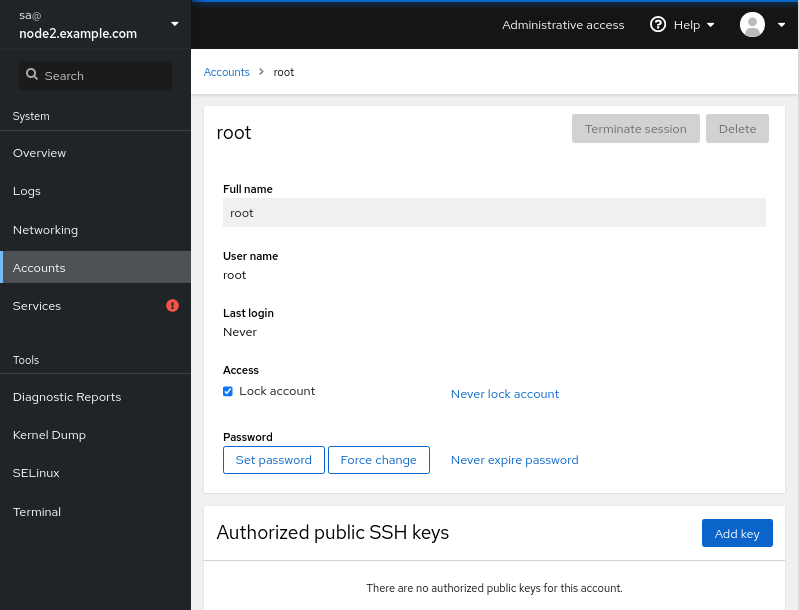
Use the Add key button to add the public keys.
Repeat the above steps for node 2 and 3.
Test passwordless login
Log in to node 1 using SSH.
On the command line try to login as root on node 1, 2 and 3.
sudo ssh root@node1.example.com
sudo ssh root@node2.example.com
sudo ssh root@node3.example.com
Check the fingerprint and select yes if being asked to continue. Check if the login was successful.
Note
Logging in using SSH should not require the password of the remote root user. However, because the command runs with sudo, you might have to provide the password for the local user.
Log out of node 1.
exitRepeat the above steps for node 2 and 3.
Configure which hosts should be managed
The hostnames of all the nodes should be added to the Ansible hosts file. This file, together with the whole Ansible inventory, is synchronized between all nodes at the end of each playbook run.
sudo vim /etc/ciphermail/ansible/hosts.ini
All hostnames of the cluster should be added to the ciphermail_gateway group.
- Example:
localhost ansible_connection=local

[ciphermail_gateway]
node1.example.com
node2.example.com
node3.example.com
Replace
node1.example.com,node2.example.comandnode3.example.comby the correct hostnames.Keep the
localhost ansible_connection=localline. The cluster setup runs some tasks on the local node, and these tasks fail without this line.
Note
If Ansible logs in as the ansible user because root is not allowed to
log in over SSH (see Authorize the SSH keys for root login), also add
the ciphermail_gateway:vars section:
localhost ansible_connection=local

[ciphermail_gateway]
node1.example.com
node2.example.com
node3.example.com

[ciphermail_gateway:vars]
ansible_user=ansible
The playbooks which come with CipherMail use sudo for every task. A custom
playbook in /etc/ciphermail/ansible/custom_playbooks must set
become: true for every play, otherwise its tasks run as the
ansible user instead of as root.
Add nodes to the cluster
The list of hostnames of all the cluster nodes should be added as an Ansible variable override.
echo "ciphermail_cluster__nodes: ['node1.example.com', 'node2.example.com', 'node3.example.com']" | sudo tee /etc/ciphermail/ansible/group_vars/all/cluster.yml
Replace node1.example.com, node2.example.com and node3.example.com by the correct hostnames.
The file /etc/ciphermail/ansible/group_vars/all/cluster.yml should look
similar to:
ciphermail_cluster__nodes: ['node1.example.com', 'node2.example.com', 'node3.example.com']
Note
If you are running MariaDB locally, the Galera cluster will initialize from the first node in the list.
Hint
By default, the IMAP server replicates email between node 1 and node 2. If you are not using Webmail Messenger, or you plan to deploy the portal in split mode, you can skip configuring IMAP replication by following the procedure below.
Create an ansible override file /etc/ciphermail/ansible/group_vars/all/imap.yml
---
# disable imap cluster
ciphermail_dovecot__cluster_nodes: []
Run the Ansible playbook
The cluster will be configured by Ansible when running the playbook:
sudo cm-run-playbook --all-hosts
The Ansible playbook configures the local firewall, generates certificates and keys, and, if a local MariaDB database is used, sets up replication and bootstraps the cluster. When the run completes, review the recap to confirm it reports zero failures (failed: 0).
PLAY RECAP *******************************************************************************************************
node1.example.com          : ok=99   changed=21   unreachable=0    failed=0    skipped=8    rescued=0    ignored=1
node2.example.com          : ok=98   changed=20   unreachable=0    failed=0    skipped=8    rescued=0    ignored=1
node3.example.com          : ok=98   changed=20   unreachable=0    failed=0    skipped=8    rescued=0    ignored=1
To check if all the nodes of the cluster are active, use the following command:
sudo cm-cluster-manage --show
wsrep_cluster_size should report that three nodes are active:
+--------------------------+--------------------------------------+
| Variable_name            | Value                                |
+--------------------------+--------------------------------------+
| wsrep_cluster_conf_id    | 8                                    |
| wsrep_cluster_size       | 3                                    |
| wsrep_cluster_state_uuid | 823e389b-eb11-11eb-9b32-d3c924e58f21 |
| wsrep_cluster_status     | Primary                              |
| wsrep_connected          | ON                                   |
| wsrep_gcomm_uuid         | 95e32cea-eb11-11eb-abd2-2bef173638db |
| wsrep_last_committed     | 0                                    |
| wsrep_local_state_uuid   | 823e389b-eb11-11eb-9b32-d3c924e58f21 |
| wsrep_ready              | ON                                   |
+--------------------------+--------------------------------------+
+-----------------------+---------------------------------------------------------------+
| Variable_name         | Value                                                         |
+-----------------------+---------------------------------------------------------------+
| wsrep_cluster_address | gcomm://node1.example.com,node2.example.com,node3.example.com |
| wsrep_cluster_name    | ciphermail                                                    |
| wsrep_node_address    | node1.example.com                                             |
| wsrep_node_name       | node1.example.com                                             |
+-----------------------+---------------------------------------------------------------+
Tip
Running the playbook with the --all-hosts option will execute the playbook
against all nodes in the cluster. When the playbook starts, it automatically
synchronizes all files from the /etc/ciphermail/ansible directory on the
first node to all other nodes in the cluster. This synchronization is useful
when you need to distribute an override file from the
/etc/ciphermail/ansible/group_vars/all directory to every node in the
cluster.
Attention
When modifying override files, ensure that all changes are made exclusively on the first node. This is because the Ansible files from the first node are automatically synchronized to all other nodes in the cluster. When you create a new file on any node other than the first node, that file will not be automatically copied to the remaining nodes in the cluster.
Hint
To configure settings for a single node only, create a directory named after
that node’s fully qualified domain name within
/etc/ciphermail/ansible/host_vars/. Any ansible override files placed in
this directory will be applied exclusively to the node with the matching
hostname.
Troubleshooting
If the playbook runs into an issue with one of the nodes, the play recap will report a failure. If the playbook fails, it is advised to reset the cluster configuration and go over all the required steps and then re-run the playbook.
To reset the complete cluster config, run the following commands:
sudo ANSIBLE_CONFIG="/opt/ciphermail/ansible/ansible.cfg" ansible.pex -m ansible adhoc -b -a 'rm -f \
 /etc/my.cnf.d/ciphermail-cluster.cnf \
 /var/lib/mysql/grastate.dat \
 /etc/pki/tls/private/ciphermail.key \
 /etc/pki/tls/private/ciphermail.pem \
 /etc/pki/tls/certs/ciphermail.crt \
 /etc/pki/tls/certs/ciphermail-ca.crt' ciphermail_gateway
sudo ANSIBLE_CONFIG="/opt/ciphermail/ansible/ansible.cfg" ansible.pex -m ansible adhoc -b -a \
'systemctl restart mariadb' ciphermail_gateway
Warning
Only run the above command when setting up the cluster. Do not run this on an already functional cluster.
Then redo all the steps to set up the cluster and re-run the playbook.